.png)
Most companies set up Salesforce for storing contact info, logging activities, and maintaining organized records of prospects and customers.
But storing data doesn’t help you convert leads into customers faster.
The top-converting B2B teams have figured out that the CRM by itself isn’t the issue. It all comes down to how you configure workflows within the CRM: routing rules, automation triggers, field management, and speed-to-lead processes.
We’ve compiled a list of the top 15 Salesforce CRM best practices based on 60+ companies, hundreds of implementation calls, pipeline reviews, and org audits, where every automation touching the Owner field was traced end-to-end. These CRM best practices separate the teams converting 70%+ of their leads from the rest.
What does a high-converting Salesforce organization look like?
Before we take a look at the 15 practices, we need to define what “more conversions” actually means in a Salesforce context.
Conversion velocity goes well beyond the closed-won rate. High-converting companies measure it at every stage: from inbound form submission to routing to booked meeting to pipeline creation to closing the deal.
As each transition is a measurable conversion point, each has a different potential leak issue.
The full-funnel conversion framework
Here’s the complete conversion journey most teams only measure in slices (and the key to Salesforce sales process optimization):
Inbound Lead → Routing → Scoring → Speed-to-Lead → Demo Booking → Meeting Held → Opportunity Creation → Pipeline Stages → Closed-Won
Conversion benchmarks at each stage (top-quartile teams):
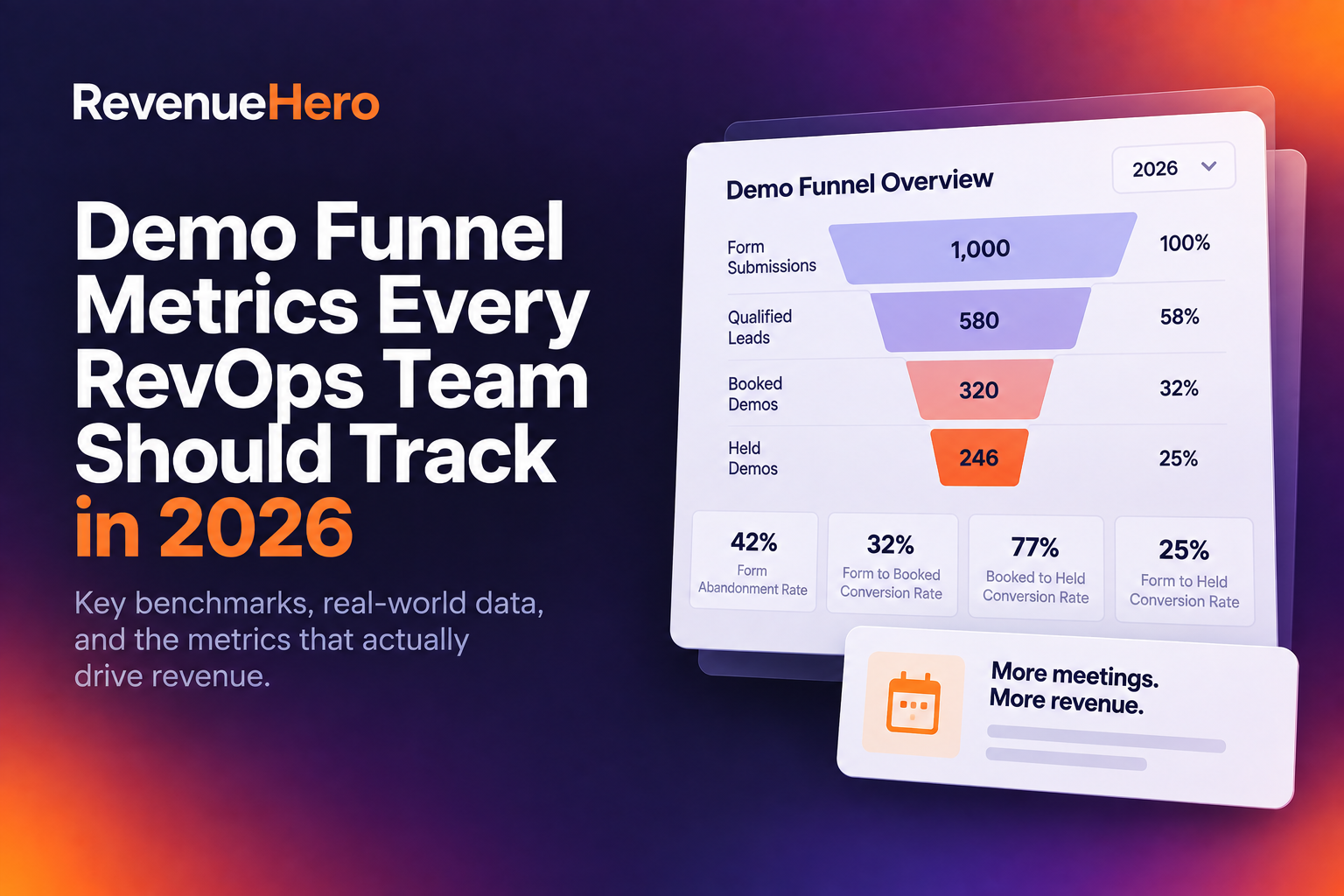
- Form fill-to-booked meeting: 62–78%
- Demo show rate: 70–85%
- Avg. sales close rate: 30–40%
The operational layer that makes this funnel work maps to seven categories: routing, field management, integration, data hygiene, automation, reporting, and lead management. Every practice in this guide pulls from at least one of these.
Pipeline velocity: the one metric that ties it all together
Pipeline velocity = (No. of Opportunities x Average Deal Value x Win Rate) / Avg. Sales Cycle Length
Every CRM best practice in this guide pulls one of those levers:
- Better routing increases the number of qualified opportunities
- Faster speed-to-lead compresses sales cycle length
- No-show recovery protects win rate
- Better scoring concentrates efforts on higher-value deals
Track your pipeline velocity weekly. If the number flatlines or drops, one of these four levers is broken, and you zero in on fixing the particular issue.
Let’s move on to the top 15 Salesforce CRM best practices now.
Practice #1: Build a routing hierarchy that protects conversion context
Routing is the biggest impact-driving lever in Salesforce, because getting leads to the right rep is super important. If a lead ends up with the wrong rep—regardless of its quality—it has a lower chance of getting converted.
If an inbound from an existing customer reaches a random SDR who doesn’t have enough context, that’s a lost deal.
The ownership-first routing hierarchy
Here’s the sequence that works for our top customers:
- Check existing contact/lead owner in Salesforce
- Check account owner on the associated account
- Check territory assignment, and if there’s no match
- Fall through to round robin, for truly net-new, unmatched leads
Round robin should never be the first stop. Rather, it should be the fallback that catches leads that don’t belong to anyone yet.
Teams implementing this hierarchy consistently see cleaner handoffs, fewer duplicate conversations, and better NPS from existing customers.
There’s a nuance most teams miss: you also need to verify that the matched owner is an active user in whatever tool handles scheduling. If the matched owner was added but never logged in, the system may treat them as inactive.
RevenueHero's routing engine handles this hierarchy natively. It checks CRM ownership, account assignment, and territory rules before any round-robin logic fires, and it validates that the matched owner is active in the scheduling system before assignment.
Audit every automation that touches the Owner field
Before you implement a new routing or scheduling tool, you need a complete inventory of everything in your Salesforce org that writes to the Owner field on Leads and Contacts. This includes Salesforce assignment rules, Flows, Process Builder automations, etc.
Without the audit, Salesforce defaults to a flow that auto-assigns Contact Owner to Account Owner on every update. So, while your routing tool assigns an SDR, Salesforce reverts it to the Account Owner two seconds later. While all’s well from the tools’ perspectives, the SDR never received the lead, and your ops team spends weeks investigating “routing bugs” that are merely flow conflicts.
The fix is to map every automation path before go-live. Either disable conflicting automations for routed leads, coordinate execution order with wait steps, or have the routing tool write to a custom field that conflicting automations don't touch.
Exclude closed-lost opportunities from account matching
Add a condition to your account-matching logic that excludes accounts where the most recent opportunity is closed-lost. If a brand new inbound lead comes from a company where a deal was lost six months ago, it should be evaluated fresh; not assigned to the rep who lost the deal.
This isn’t punitive. You need a fresh set of eyes and a different approach. And automatically routing every new inbound from that account back to the same rep gives them an unearned second chance without any evaluation of whether they're the right person to run it.
The implementation is simple: add a filter to your account owner lookup that checks the most recent opportunity stage. If it's closed-lost, bypass the account owner match and let the lead flow to standard routing logic (territory, segment, round robin).
Practice #2: Architect your lead scoring for conversion, not just engagement
Most lead scoring models measure marketing engagement: email opens, page views, webinar registrations, etc. But those signals tell you who's interacting with your content, and nothing about who's ready to buy.
The fit + intent scoring model
Build this scoring on two axes:
- Fit (ICP Match): Company size, industry, revenue, tech stack. These are firmographic signals that tell you whether the lead could become a customer.
- Intent (Behavioral Signals): Demo page visits, pricing page views, high-intent form submissions, competitor comparison pages. These are signals that tell you the lead *wants* to become a customer.
If you get a score of 60–80, the lead is SDR ready. If it’s a 90+, alert your AEs. Einstein Lead Scoring adds an AI layer here, analyzing historical conversion data to identify patterns humans miss and updating scores continuously.
Scoring buckets that map to routing actions
Three buckets, three workflows:
- Hot (90+): Route immediately. Sub-60-second SLA. This lead goes straight to the right rep with a Slack alert.
- Warm (60-80): Route to the SDR queue. 4-hour SLA. Standard follow-up cadence.
- Nurture (<60): Enroll in a marketing sequence, and re-evaluate after 30 days.
Each bucket should trigger a different Salesforce Flow. Hot leads need instant routing. Warm leads need cadence enrollment. Nurture leads need a marketing hand-back. When every score range maps to a specific action, nothing falls through the cracks.
Self-reported data is unreliable, enrich before scoring
Most prospects might not select the right revenue band on your demo forms. Either they’re guessing, or the ranges on your form might not match with how they think about their business.
The best way forward is to connect an enrichment provider (Apollo, Clearbit, ZoomInfo) to your routing flow so it enriches in real-time at form submission. Use the enriched value for scoring and routing decisions. Fall back to self-reported data only when enrichment returns nothing. Pick a primary provider, use a secondary for backfill, and build tiebreaker logic for mismatches.
This eliminates the scenario where a prospect selects "$5M-$10M" when they're actually a $50M company, and your growth team gets an enterprise deal they're not equipped to handle.
Practice #3: Speed-to-lead: Why every minute costs you pipeline
The data behind speed-to-lead
- Leads contacted within 1 minute see a 391% increase in conversion
- The average B2B response time is approx. 29 hours
- 63% of companies never respond at all
Every hour you wait, conversion probability falls off a cliff. After 30 minutes, a lead is 21x less likely to qualify than one contacted in the first 5 minutes. Wait 24 hours and the odds drop 60x.
Building a Salesforce speed-to-lead engine
The workflow that top teams run:
- Form submission triggers instant routing
- Slack/Teams notification fires to the assigned rep within seconds
- Round-robin assignment kicks in (only if no ownership match exists)
- SLA timer starts on lead assignment
- If unworked after 15 minutes, re-route to next available rep
- If unworked after 1 hour, escalate to manager
The critical detail is to route on a specific status transition (e.g., “when Lead Status transitions from Pre-MQL to Open”) and not a static condition (e.g., “when Lead Status equals Open”). Static conditions cause re-routing of leads that were manually moved between statuses or are already being worked. If your routing rule fires on "Status = Open," the routing system grabs that lead again and assigns it to a new rep via round robin. The original rep loses the lead mid-conversation.
RevenueHero collapses this entire workflow into a single step. The moment a form is submitted, RevenueHero routes the lead to the right rep based on the ownership hierarchy and presents an instant scheduling calendar. The lead picks a time before they leave the page. Speed-to-lead goes from minutes to seconds.
Re-routing unworked leads
SLA enforcement is the safety net. If a rep doesn't engage within the SLA window, automatically reassign. This prevents the scenario where a hot lead sits in someone's queue over lunch, over the weekend, or over a PTO day nobody remembered to account for.
One detail teams miss: deactivated CRM users cause silent assignment failures. The routing tool tries to assign the lead, gets an error back from Salesforce because the user is inactive, and either fails silently or throws a vague error message. Build a quarterly offboarding checklist that includes every routing tool in your stack. Don't rely on CRM deactivation alone to clean up downstream systems.
Practice #4: Salesforce demo scheduling: Eliminate the booking gap
The highest leakage point in most funnels is the gap between “demo requested” and “meeting booked”. This is often a scheduling problem.
The “not booked” black hole
Most teams only track successful bookings. They never see the warm leads who filled out the form, saw the calendar, and didn't pick a time.
To fix this, build dedicated Salesforce reports for contacts with a "not booked" meeting status. Route these into SDR recovery queues with Slack notifications. Set up automated nurture sequences specifically for this segment, with a different messaging compared to the standard nurture.
These leads already showed intent. They don't need to be convinced to talk to you. They need a more convenient time, a different channel, or a nudge. One of the SF orgs we spoke to found a 22% drop-off rate in a single month. Another created a dedicated SDR recovery queue specifically for unbooked prospects with Slack alerts for immediate follow-up.
RevenueHero tracks "not booked" prospects natively. When a lead submits a form but doesn't select a time slot, RevenueHero logs the event in Salesforce with a "Not Booked" status and can trigger automated follow-up sequences to recover that lead.
Salesforce calendar booking: instant vs. back-and-forth emails
The goal: zero time between form submission and calendar selection. Embed scheduling directly in the form flow. When a prospect hits "Submit," the next thing they see is a calendar with available time slots from the right rep, pre-routed based on the ownership hierarchy.
Back-and-forth emails ("Thanks for your interest! Someone will reach out to schedule...") are conversion killers. Every handoff introduces delay. Sales Hub meeting scheduler users close 27% more deals for this exact reason.
RevenueHero embeds the scheduling step directly into the form submission flow. The prospect fills out the form, gets instantly matched to the right rep, and books a time slot on the same page. No redirects, no email tennis.
Progressive form submission for better matching
Single-step forms create a timing problem. The routing tool needs to search Salesforce for existing records (to match on account owner, territory, etc.), but the form just created the record and Salesforce hasn't finished indexing it yet. The lead creation process alone takes about 5 seconds. If the routing tool fires its search before those 5 seconds are up, it comes back empty. The lead is treated as "no match found" and goes to round robin, even though the record exists.
Progressive forms solve this architecturally:
- Collect email and company, create the CRM record, trigger enrichment.
- Show a loading state or a second set of questions.
- By the time the user finishes the second step (10-15 seconds later), the CRM record exists, enrichment has returned, and the routing tool can match accurately.
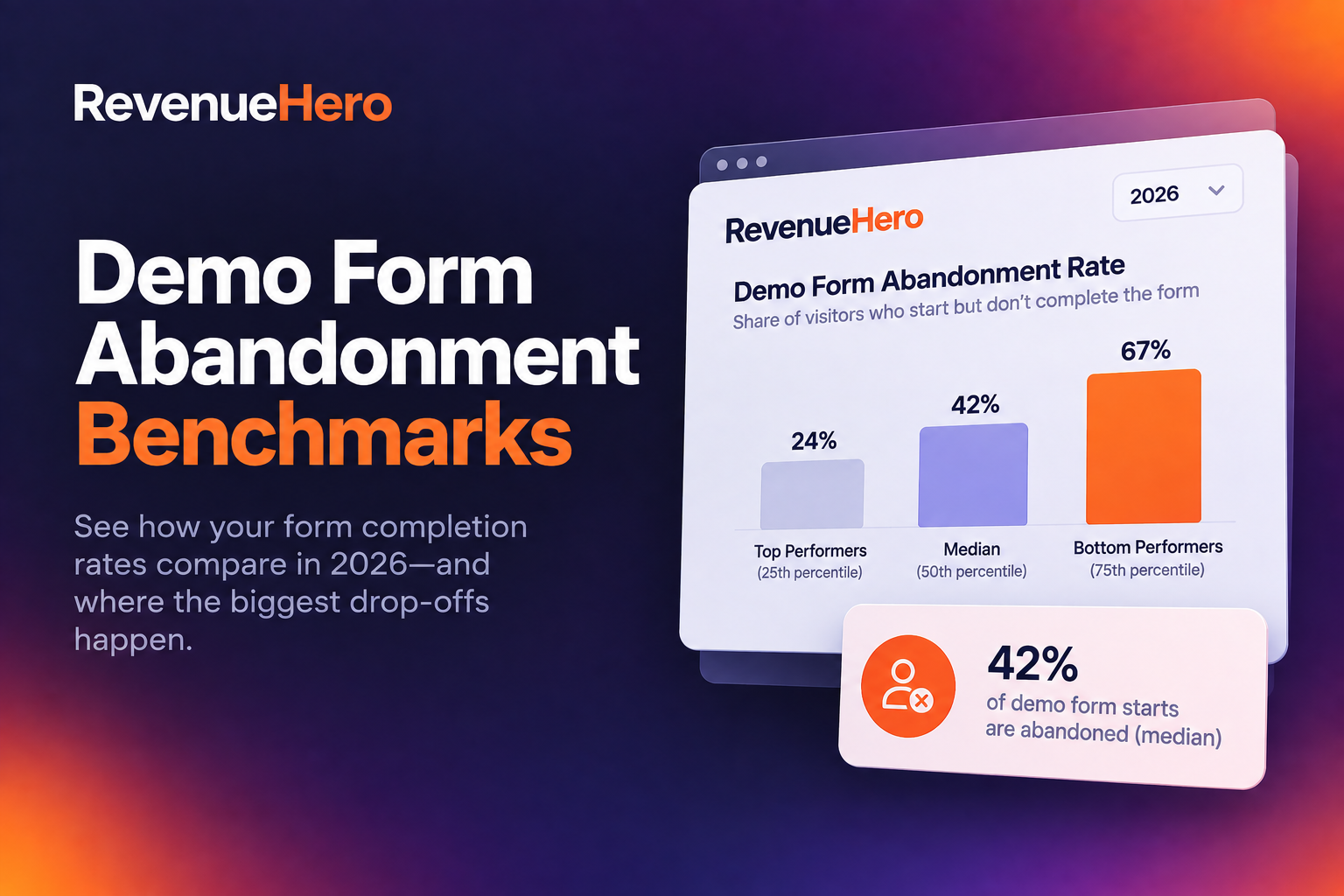
Conversion rates also benefit. Shorter initial forms have lower abandonment. The second step captures supplemental data from a user who has already committed.
Practice #5: No show management: a conversion strategy, not an admin task
One SF org discovered their no-show rate to be 37%, only after implementing proper tracking. Before that, no-shows were invisible. Meetings showed as "completed" in the CRM whether anyone showed up or not. Pipeline reporting was fiction.
Track no-shows with standardized statuses
Use a single "No Show" status. Not "No show," "NoShow," and "Didn't attend" across different reps. Standardization is the foundation of every workflow that follows.
Map meeting statuses at full granularity: Booked, Held/Completed, Cancelled, No-Show, Rescheduled. Each status should trigger different automation. Never use a single "Meeting Scheduled" status that never gets updated.
Because without granular statuses, you can't answer basic questions:
- What's our show rate?
- How many meetings were rescheduled vs. cancelled?
- What percentage of cancellations rebook?
Your pipeline reporting conflates "meeting was booked" with "meeting actually happened," which overstates your pipeline by the exact percentage of your no-show + cancellation rate.
Build a no-show recovery workflow
When a meeting is marked as no-show:
- Update the CRM meeting status to "No Show"
- Credit the rep's round-robin balance so they aren't penalized for a meeting that didn't happen
- Enroll the lead in an automated re-engagement sequence with different messaging than your standard cadence
- Send a Slack notification to the team
RevenueHero automates no-show detection and updates the meeting status in Salesforce automatically. When a no-show is confirmed, it credits the rep's round-robin balance and can trigger re-engagement workflows directly from the CRM status change.
Confirmation sequences that protect show rates
Pre-meeting nurture cuts no-shows dramatically:
- Immediate: Confirmation email with meeting details and calendar file
- 24 hours before: Reminder with a brief agenda and what to expect
- 1 hour before: SMS or email reminder with the meeting link
- Calendar sync verification: Confirm the meeting is on the prospect's calendar
Shorter time-to-demo also improves show rates. If you can offer same-day or next-day availability instead of "the first opening is next Thursday," prospects stay warm and show up.
Practice #6: Design pipeline stages for conversion clarity
Too many stages kills visibility, while too few makes forecasting meaningless.
Use 5–7 stages that map to buyer actions
Each stage should represent a verifiable buyer action, not a rep's self-assessment. Here’s a recommended structure:
- Discovery Completed (buyer confirmed the problem)
- Solution Fit Confirmed (buyer agreed your product addresses their need)
- Stakeholder Aligned (decision maker is engaged)
- Proposal Delivered (buyer has pricing and terms)
- Negotiation (active commercial discussion)
- Closed-Won / Closed-Lost
Exit criteria and required fields at every stage
A deal can’t move from “Discovery” to “Solution Fit” without populating the required fields: decision maker identified, timeline confirmed, budget range established, etc.
Without enforcement, reps drag deals forward to inflate the pipeline without completing the work each stage requires. Teams that enforce exit criteria see a 23% improvement in forecast accuracy. That's the difference between a sales leader committing a number to the board with confidence.
Data-driven probability assignment
Analyze your historical data. If 40% of deals that reach "Proposal Delivered" historically close, set probability at 40%, instead of using Salesforce’s default values. If 80% of deals in "Negotiation" close, set it at 80%.
Pull a report of all closed opportunities from the past 12 months. Group by stage at time of close. Calculate the actual conversion rate per stage. Use those numbers. Update them quarterly.
Practice #7: Automate the follow-up cadence
The follow-up cadence framework
Define timing, channel, and escalation for every lead:
- Day 0: Immediate call + personalized email
- Day 1: Email with specific value prop tied to their use case
- Day 3: LinkedIn connection + comment on recent content
- Day 5: Final email with customer proof point from their industry
- Day 7: Escalate to manager or move to nurture
Stop outbound sequences when a meeting is booked
Add the scheduling tool's meeting status field as a trigger condition in your sequence enrollment rules. When the field changes to any "booked" or "scheduled" value, automatically pause or remove the lead from all active sequences.
Without this, leads who just booked a demo keep receiving cold outbound emails from the same company. The sequence email lands in their inbox an hour after they scheduled a call. It signals disorganization at the worst possible time: right when they've decided to engage.
RevenueHero writes the meeting status to Salesforce the moment a meeting is booked. That CRM field update can serve as the trigger for SalesLoft or Outreach to automatically pause active sequences, eliminating the awkward overlap between booking confirmation and cold outreach.
Follow sequence hygiene
Don't stack multiple sequences on the same lead. Check enrollment reports weekly. Perform A/B tests on subject lines and timing. Route on specific status transitions (not static conditions) to prevent re-triggering sequences for manually updated leads.
Practice #8: Salesforce field management that protects your conversion data
Bad data silently degrades every conversion metric you track. And by the time you notice, months of reporting are compromised.
Set field-level security before go-live
This is the single most common first-week problem with any Salesforce integration. Your routing or scheduling tool creates custom fields on Lead, Contact, and Activity objects. Those fields exist in your Salesforce org. But they're invisible to your users because field-level security hasn't been granted.
Proactively grant FLS on every custom field your integration creates to the System Administrator profile and the integration user profile. Don't wait for the "fields aren't syncing" panic. Do it before your first test submission. Verify with the Salesforce Inspector Chrome extension, which shows raw field values on any record regardless of page layout configuration.
Custom fields on the Event object for meeting lifecycle
The default Salesforce Event object treats all meetings identically; no way to filter demos from discovery calls, separate inbound from outbound, or report on meeting outcomes. Fix this by adding custom fields:
- Meeting Status: Booked, Completed, Cancelled, No-Show, Rescheduled
- Meeting Type: Demo, Discovery, Handoff, Follow-up
- Meeting Source: Inbound form, Outbound sequence, Event, Partner referral
- Booking Tool: Which system created this meeting (critical when running multiple tools)
This makes activity data reportable and filterable. Sales managers can run "all inbound demos completed this quarter, grouped by rep." Marketing can see "all event-sourced meetings that resulted in no-shows."
RevenueHero automatically populates these custom fields on the Salesforce Event object when a meeting is booked. Meeting status, type, source, and booking tool are all written to the CRM without any manual input from reps.
Consistent tracking fields across CRM and marketing
When your scheduling or routing tool writes meeting data to Salesforce, create matching custom fields in HubSpot, Marketo, or whatever your marketing automation platform is. Sync them bidirectionally or at least push from Salesforce to marketing.
The idea is to give marketing visibility into meeting outcomes without requiring Salesforce access. When meeting data lives only in Salesforce, marketing can't see which campaigns drove booked meetings, can't trigger nurture sequences based on meeting status (no-show, completed, cancelled), and can't calculate their own conversion metrics. They rely on sales reps to manually report results. Which means they never get the data.
Create matching fields for: meeting status, meeting type, meeting source, and meeting date. Build a Salesforce flow or use your CRM sync to keep these fields updated in both systems.
Practice #9: Integration architecture that doesn’t break conversions
Every integration conflict is a conversion leak, and most integration failures don’t throw visible errors. They just silently break things.
Use a dedicated integration user with API-only license
Create a dedicated Salesforce integration user on an API-only license. Give it the right permission sets, including "View All Users" (required for CRM ID synchronization) and access to ConvertedOpportunityId (required for duplicate detection across converted leads).
Never connect integrations through a real person's account. When that person changes their password, goes on vacation and their session expires, or gets offboarded, your entire integration breaks. This has happened at companies that should know better. The integration goes down on a Friday. Nobody notices until Monday. Three days of inbound leads were never routed, never created in the CRM, never followed up.
Use one system to create records
If another system in your stack (Brevo, Zapier, a CRM sync, your marketing automation platform) already creates Salesforce records from form submissions, turn off record creation in your routing or scheduling tool.
When two systems both try to create records from the same form submission, they fire simultaneously. Both may create a lead, an account, or a contact. Your Salesforce dedupe rules may not catch records created milliseconds apart because the second record is committed before the first one is fully indexed. The result: duplicate leads, duplicate accounts, and one of the records has incomplete data.
Validation rules silently block integration updates
Before connecting any integration, audit every validation rule on Lead, Contact, and Event objects. If a validation rule requires a field that your integration doesn't populate (like "Partner Event Attribution" or a mandatory picklist), the entire field update fails silently. The meeting books. The calendar invite goes out. But nothing syncs to Salesforce.
The error in the routing log shows a FIELD_CUSTOM_VALIDATION_EXCEPTION, but most ops teams don't check routing logs daily. Reps start saying "where did that demo go?" and nobody connects it to a validation rule that was added by a different team for a completely unrelated reason.
The audit: go to Setup > Object Manager > [Lead/Contact/Event] > Validation Rules. Review every active rule. For each one, check whether the required field will be populated by your integration at the time of the update. If not, either add an exception for integration-created records (checking the "Created By" user) or make the field conditional rather than universally required.
Practice #10: Build conversion-focused dashboards
Most Salesforce dashboards track activity volume: calls made, emails sent, meetings booked. You need to measure how effective your conversion funnel is.
The conversion rate dashboard every Salesforce org needs
Build a dashboard with these components:
- Stage-to-stage conversion rates: Lead to MQL to SQL to Opportunity to Close
- Conversion rate by source/channel: Which channels produce pipeline, not just leads
- Conversion rate by rep: Who converts, not just who's busy
- Average time-in-stage: Where deals stall
- Pipeline velocity trend: Weekly trendline of revenue throughput
Show the funnel visually. When a VP of Sales can see that 40% of leads convert from MQL to SQL but only 15% convert from SQL to Opportunity, they know exactly where to focus.
Add UTM fields to both the Contact/Lead object and the Deal/Opportunity object in Salesforce
Most teams add UTM fields to the Contact but forget about the Deal. When a deal is created, the attribution data stays on the Contact. Marketing can see which campaigns drove form submissions but can't see which campaigns drove pipeline or revenue because the Deal object has no UTM fields.
Build a Salesforce flow that copies UTM values from the Contact to the Deal when the Deal is created. This is a one-time setup that pays dividends forever. Marketing can finally run a report showing "pipeline generated by utm_campaign, grouped by deal stage." That's the report the CMO actually wants.
Surface activity data on Contact records
Meeting data in Salesforce typically lives on the Activity/Event object. It's buried one level deep. Sales managers can't run a simple contact-level report to see "which leads had demos this quarter."
Build Salesforce flows that populate contact-level fields from activity records. Specifically, create and sync:
- Meeting Type (demo, discovery, handoff)
- Last Meeting Date
- Meeting Source (inbound, outbound, event), and
- Meeting Status (booked, completed, no-show)
When the scheduling tool creates or updates an Event record, the flow reads the meeting data and stamps it on the parent Contact or Lead. Marketing can run a report filtered by "Last Meeting Date in this quarter." Sales managers can see "all contacts with Meeting Status = No-Show" without drilling into individual activity timelines.
Practice #11: Territory management as a conversion lever
Misaligned territories silently destroy conversion rates. This is one of the least-discussed conversion topics in Salesforce content, and one of the most impactful ones.
Territory changes require a routing freeze
When you restructure territories, pause or soft-launch your routing system. Update all routing rules, assignment logic, and territory maps simultaneously. Test every path. Never make territory changes while your routing system is in full production.
You update territories in Salesforce on Monday. Your routing tool still references the old territory map. Leads for the Southeast get routed to the rep who covered that territory last quarter, not this quarter. Nobody notices until the new Southeast rep asks why they haven't received any inbound in a week.
Schedule a go-live window for territory changes the same way you'd schedule a migration. Soft-launch with a subset of traffic. Verify the routing logs show leads going to the correct new owners. Then open the floodgates.
Verify which Employee Count Field your routing rules reference
Salesforce orgs commonly have three or more "employee count" fields:
- The enriched company-level field (from Clearbit, Apollo, etc.)
- The CRM Lead or Contact field
- The self-reported form value
These are often three different fields with three different values for the same company.
Before trusting any routing rule that segments by company size, pin down the exact API field name the rule references. One team discovered their routing rule was matching "Lead - Employees" showing 35, but the field visible on the Salesforce page layout showed 28. The lead ended up in the wrong pod, and the discrepancy wasn't caught until a rep flagged it manually.
Check this by:
- Looking up the API name in your routing rule configuration
- Using Salesforce Inspector to see all employee-related fields on a test record, and
- Verifying they match.
Practice #12: Win/loss analysis as a conversion feedback loop
Top-performing Salesforce orgs close at 30–40%, and they do one thing religiously: systematically learn from losses and feed those insights back into the funnel.
Set up Closed-Lost reason tracking
Require a closed-lost reason (picklist, not free-text field) on every lost deal. A free-text field gives you 200 variations of "timing wasn't right." A picklist gives you reportable categories:
- Lost to Competitor (name the competitor in a separate field)
- No Decision / Stalled
- Budget Constraints
- Timing / Not Ready
- Poor Fit
- Champion Left
Analyze patterns monthly. For instance, if one competitor keeps winning, your positioning needs work.
Feed insights back into the funnel
- If "No Decision" is your #1 loss reason, the problem is upstream, i.e., qualification isn't filtering out tire-kickers. Tighten your scoring model. Add harder exit criteria to early pipeline stages.
- If "Lost to Competitor" dominates, the problem is mid-funnel. Positioning and differentiation need work. Build competitive battle cards. Adjust demo flow to address the specific objections that competitor raises.
- If "Champion Left" appears on more than 10% of losses, you need a multi-threading strategy. Never have a single point of contact in a deal.
Win/loss analysis closes the loop between pipeline outcomes and top-of-funnel practices. Without it, you keep feeding the same problems into the same funnel and expecting different results.
Practice #13: Data hygiene practices that directly impact conversions
70% of CRM data deteriorates annually. According to Gartner, poor data quality costs organizations close to $15M per year on average. Bad data is a compounding problem: every quarter you ignore it, routing gets less accurate, reports get less reliable, and conversion metrics drift further from reality.
Normalize and validate domains for account matching
Domain data is the backbone of account matching. If your domain data is inconsistent, account matching breaks. The fix: strip http/https protocols, remove www prefixes, and standardize domain formats across all records.
Build an exclusion list for generic domains that would match incorrectly: gmail.com, yahoo.com, outlook.com, but also amazon.com, etsy.com, and other consumer platforms where employees sometimes use personal accounts. Without the exclusion list, a prospect submitting with their @amazon.com email gets matched to your Amazon account and routed to whoever owns that enterprise relationship.
One team saw routing failures at a sales conference because existing customer meeting requests were misdirected. The root cause: one record stored "https://www.company.com" and another stored "company.com." The lookup treated these as different domains and failed to match.
For personal email submissions (gmail, yahoo, hotmail), build a fallback path: try enrichment to resolve the company, and if enrichment returns nothing, fall through to round robin. Don't DQ personal emails by default unless your ICP truly excludes them.
Enable field history tracking on email and owner fields
Turn on Salesforce field history tracking for the email field and owner field on both Leads and Contacts. This creates the forensic audit trail you need to diagnose routing issues, duplicate merges, and ownership disputes after the fact.
Without field history, when a lead is misrouted or a duplicate appears, you have no way to reconstruct what happened. You end up guessing, filing support tickets, re-running test submissions, and still not knowing what actually happened to the original lead.
Salesforce limits field history tracking to 20 fields per object. Prioritize the fields most commonly involved in routing and ownership decisions.
Deduplication rules can silently swallow leads
When leads appear in your form provider but not in Salesforce, check Salesforce's duplicate management rules before blaming your integration.
This is what it looks like: three leads are captured in your form tool. The form tool confirms submission. Your routing tool processes them. But none of those appear in Salesforce. No error messages. No failed records. The leads just vanish.
Investigation eventually reveals that Salesforce's own dedupe rules, configured months ago by a different admin, are silently eating the records because they match an existing contact by email domain + first name.
The fix: review your Salesforce duplicate rules (Setup > Duplicate Rules) and understand which ones are set to "Block" vs. "Alert." For integration-created records, consider using "Alert" instead of "Block" so the record is created with a duplicate flag rather than silently rejected.
Practice #14: Use AI and Agentforce for Conversion Optimization
Einstein Lead Scoring for predictive prioritization
Einstein analyzes your historical conversion data to score leads automatically. The key advantage over manual scoring models: it identifies patterns humans miss and updates continuously as your data evolves.
Manual scoring models decay. The firmographic signals that predicted conversions six months ago may not predict them today. Einstein recalibrates constantly, surfacing leads that match the profile of your actual closed-won deals, not the profile you *think* your closed-won deals match.
Combine Einstein scoring with your Fit + Intent model from Practice 2. Use Einstein as the AI layer that refines and validates your manual scoring rules. When Einstein and your manual model disagree, investigate. Those disagreements often reveal blind spots in your ICP assumptions.
Agentforce for automated follow-up and deal intelligence
Agentforce brings AI agents directly into the sales workflow:
- AI-generated follow-up emails personalized to the prospect's industry and engagement history
- Next-best-action recommendations based on deal stage and buyer signals
- Deal risk alerts when a deal shows patterns consistent with historical losses
- Automated meeting summaries that update CRM records without manual rep input
- Conversation intelligence that identifies winning talk tracks and objection-handling patterns
AI tools deliver a 10 percentage-point win rate improvement on deals over $50K and an 11-day reduction in average sales cycles. Those numbers compound across your entire pipeline.
Practice #15: Measure what matters: Conversion KPIs & pipeline velocity
If you can't measure it, you can't improve it. This section covers the metrics that tell you whether your conversion practices are actually working.
How to calculate & track pipeline velocity in Salesforce
Revisit the formula: (Opportunities x Deal Value x Win Rate) / Cycle Length
To build this in Salesforce:
- Create a custom report type that includes Opportunities with related Account data
- Add formula columns for each variable: count of opportunities, average amount, win rate (closed-won / total closed), and average days in pipeline
- Add a formula column that calculates velocity: (count x avg amount x win rate) / avg days
- Group by time period (weekly or monthly)
- Save as a dashboard component with a trendline
Measuring ROI of your Salesforce conversion practices
Before making any changes, document your baseline metrics. You need a "before" to prove the "after."
Start with the practices with the highest impact: speed-to-lead (Practice 3), routing hierarchy (Practice 1), and no-show tracking (Practice 5). Measure the conversion metric most directly affected by each practice. Compare 30-day windows before and after implementation.
The ROI framework: if speed-to-lead drops from 4 hours to 5 minutes and your lead-to-opportunity rate increases by even 2 percentage points, calculate the incremental pipeline that 2% represents. Multiply by your average deal size and win rate. That's the revenue impact of a single practice.
Common Salesforce mistakes that kill conversions
Here are the 7 mistakes that can plummet your conversion rates:
- Slow response time: Wait 24 hours and leads are 60x less likely to qualify. Average B2B response time is approx. 29 hours 17 minutes. 63% of companies never respond at all.
- No routing hierarchy: Round robin as the first stop instead of the fallback. Existing customers land on random SDRs. Context is lost and deals die.
- No "not booked" follow-up: 20-40% of qualified form submissions never convert to a meeting. Nobody builds reports for this segment. Nobody follows up.
- No-shows treated as completed: Pipeline reporting counts meetings that never happened. One company discovered a 37-38% no-show rate only after implementing tracking. Months of reporting were wrong.
- Competing automations: The routing tool sets the correct owner. A Salesforce flow reverts it 2 seconds later. The routing log shows success. The CRM shows a different owner. Ops chases phantom bugs for weeks.
- Missing attribution: UTMs on the Contact but not on the Deal. Marketing can see which campaigns drove leads but can't prove which campaigns drove revenue. The CMO's report is blank.
- Stale routing rules: Deactivated reps exist in round-robin pools. Old territory maps are still in routing logic. Employee count fields referencing the wrong API name. All silent failures.
How to diagnose why leads aren’t converting?
Run this diagnostic in order:
- Check speed-to-lead metrics: What's the average time from form submission to first rep contact?
- Check routing logs: Are leads going to the right reps? Any assignment errors?
- Check no-show rates: Are booked meetings actually happening?
- Check "not booked" drop-off rate: How many form submissions never become meetings?
- Check sequence engagement rates: Are follow-up emails getting opens and replies?
- Check stage-to-stage conversion: Where in the pipeline are deals stalling?
- Check closed-lost reasons: What patterns are emerging in losses?
Work top-down, because the best fixes are at the top of the funnel. A 5% improvement in form-to-booked rate compounds through every downstream stage.
Salesforce conversion best practices checklist
You can audit your org against this list quarterly.
Let RevenueHero help your team turn high-intent users into booked meeting without slowing down your funnel.