.png)

June was about tightening control over who books on your calendar, and improving controls over how fast you can filter, export, and analyze your booked meetings.
Cap bookings, block duplicates
Setting up Prospect Limits within Meeting Categories lets you restrict the number of meetings a prospect can book with you. Caps can be set up on both individual (by email address) and organization (by domain) level per day, week, month, or quarter.
<Limit No. of Meetings booked by prospects.screenstudio>
This helps avoid duplicate meetings when prospects use the same meeting links to book multiple meetings and get routed to different reps. RevenueHero also reminds prospects that they already have an active meeting on their calendar if they try to book another. 🚧
Block the bad actors
Block specific people or entire organizations from booking a meeting with you. Add them to your Custom Email Blocklist, by email address or domain and anyone who matches is disqualified and not shown the scheduler.. This works across every RevenueHero link and Relay Quick Book (Magic slots).
<Block list.screenstudio>
Use it to block specific emails, the valid ones that take away precious time off of your team’s calendar, without having to manually cancel meetings. 🚫
Filter and export your meetings
You can now filter, search, and export data directly from the Meetings page. The exported CSV gives you a complete picture of your meetings, right from the meeting status, prospect, booker, and assignee info to the source of the meeting, and even the rule, router, or link the meeting came in through.
<Filter & Export.screenstudio>
So when leadership wants the end-of-quarter story, which campaigns drove meetings, how many showed, the numbers by source, you pull it yourself in one export. 📊
Reassign outside a rep's availability
Meetings can be reassigned to a rep's calendar even when the slot lies outside their default availability.
<Book Outside availability.screenstudio>
With this, even when a prospect’s preferred time slot lies outside the availability of the rep with most context about the deal, you can hand them the meeting anyway. The prospect keeps their slot, and the person who knows them takes the call. 🔁
Jump straight to the routing logs
You can now click View Logs next to any rep listed in the Distribution Report, available under both Inbound and Campaign Routers. This provides visibility into the complete routing logs for all meetings assigned to that rep within the selected time frame in one-click. 🔎
<Distribution Report to Routing Log.screenstudio>
Some smaller improvements that add up
Adapt date formats for your prospect
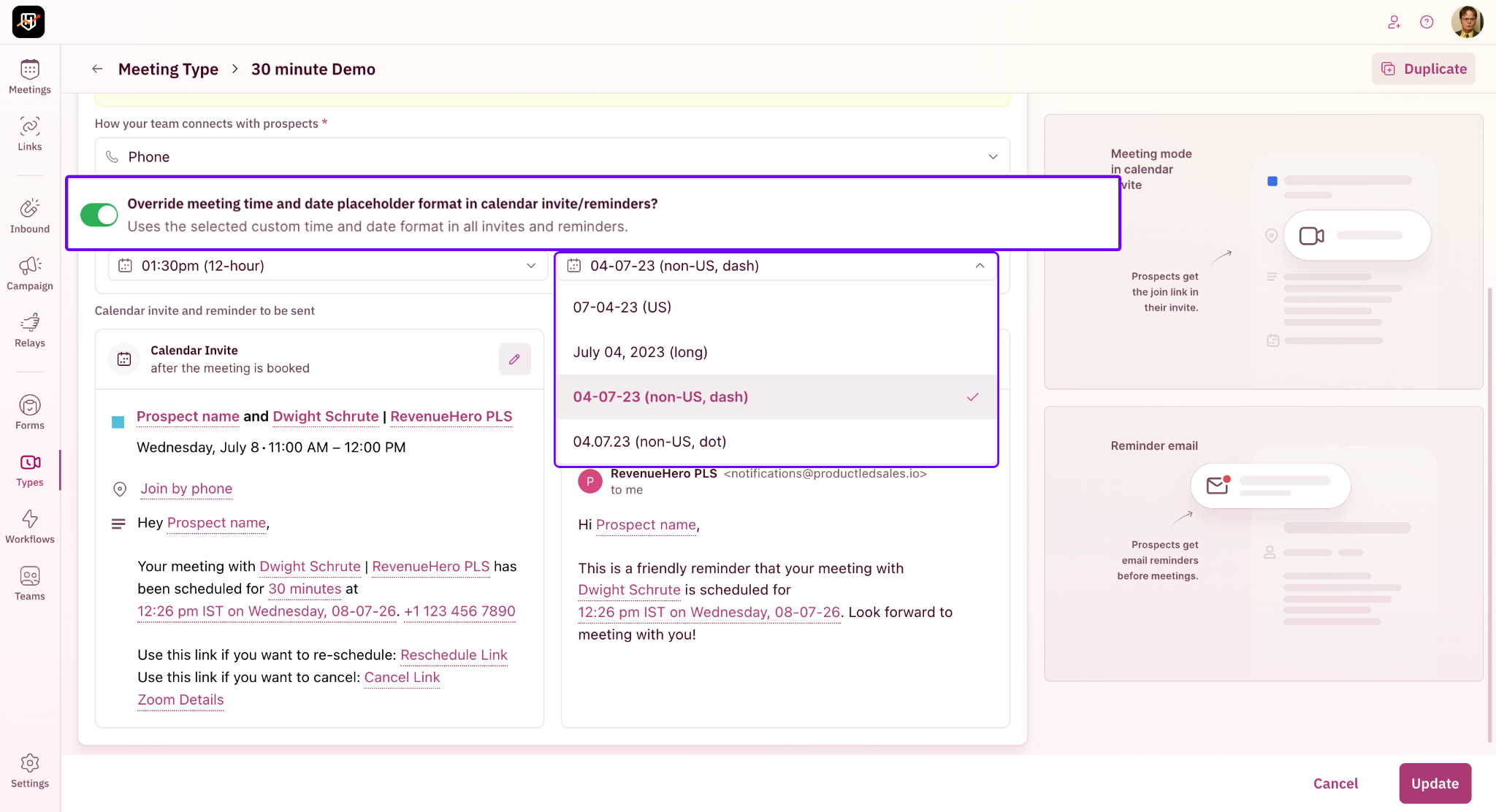
Customize the date format based on your prospect’s region. Once set up, it applies to every invite and reminder you send, across meeting types, the locations configured on them, and the meeting type behind a meeting link.
Personalize with the rep's first name
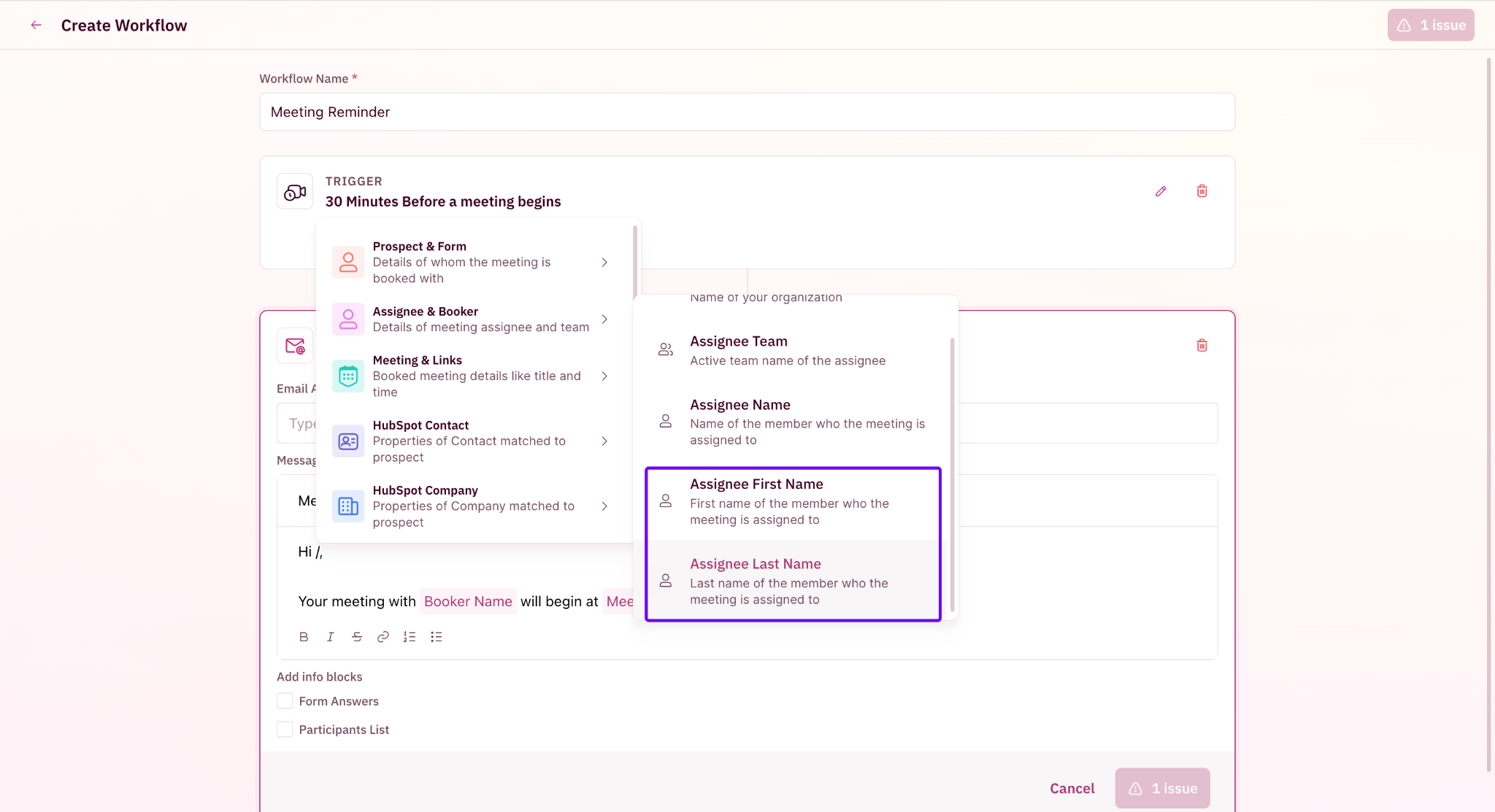
Calendar invites and Workflow steps now take Assignee First Name and Assignee Last Name as tokens.
Upgraded filters
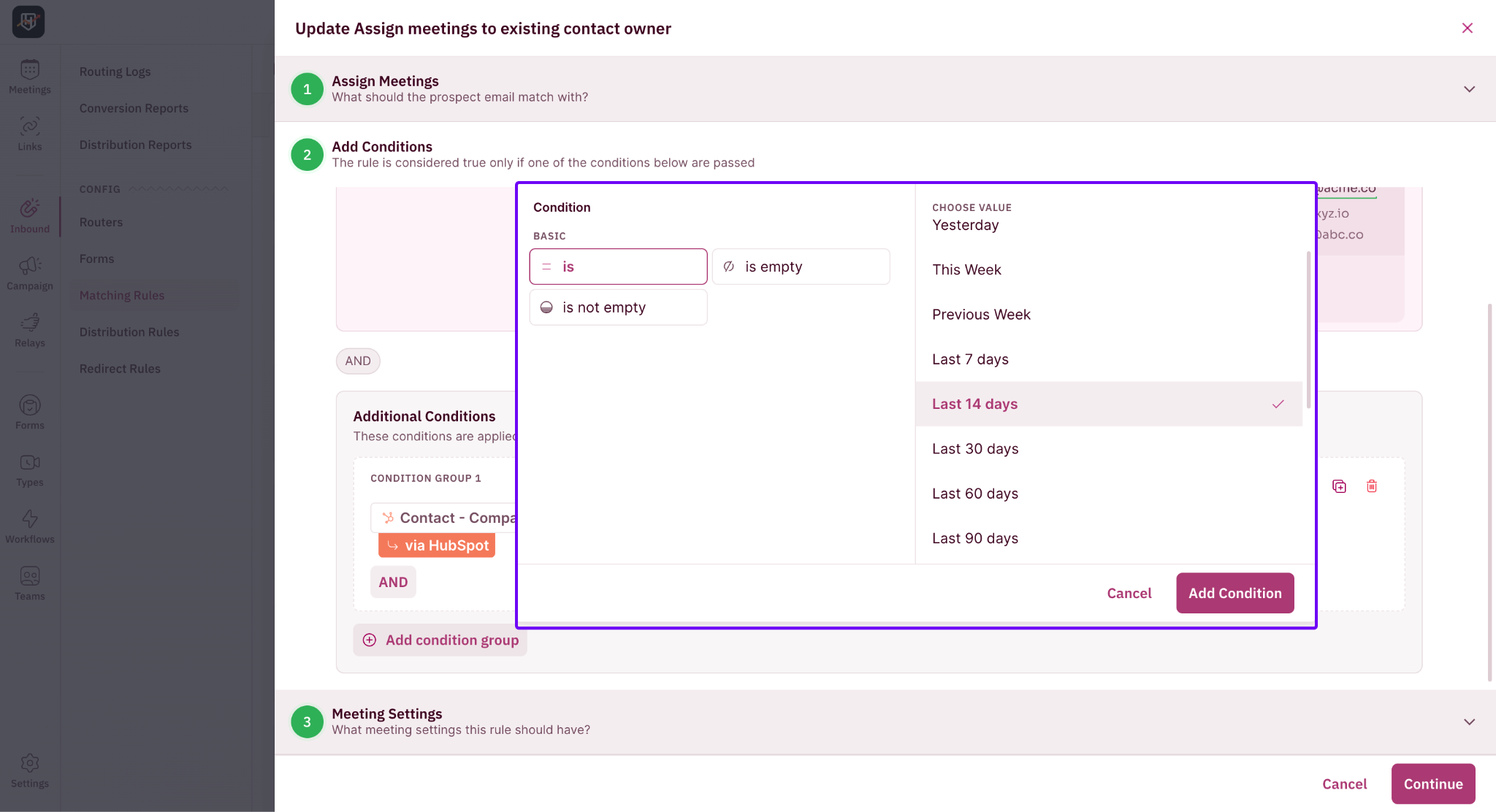
You can now filter by Meeting Link and Meeting Type and custom date ranges. "Last 14 days" also joins the preset range everywhere you set a time frame, filtering a report, saving a view, routing on how recently an account changed.